How to Fix Your Home Office Ergonomics (Without Buying a New Desk)
If your neck aches by 3pm, your wrists complain by Friday, and your "office" is a laptop on a kitchen table, this guide is for you. The good news: the biggest home office ergonomics wins don't require a new desk. They require fixing five small things — screen height, foot position, wrist angle, lighting, and cable chaos — most of which cost less than a week of takeout coffee.
Why your setup hurts (the 60-second version)
Ergonomics is mostly geometry. When your screen sits below eye level, your neck bends forward — roughly 10 pounds of extra strain for every inch your head drifts forward. When your wrists bend upward to reach a flat keyboard, the tendons compress. When your feet dangle or your chair is the wrong height, your lower back picks up the slack. None of this announces itself on day one. It compounds over months, which is why the fix feels so dramatic once you make it: people describe it as "I didn't know how bad it was until it stopped."
You don't need to overhaul everything at once. Start with the fix that matches your loudest complaint, then work down the list.
Fix 1: Raise your screen to eye level
The single most common home office problem is also the easiest to spot: you're looking down at your work all day. Laptop users have it worst — the screen and keyboard are fused together, so one of them is always at the wrong height.
The fix is a laptop stand that lifts the screen to eye level, paired with an external keyboard and mouse (even an inexpensive set works). Aluminum stands double as heat sinks, keeping the laptop cooler, and the good ones fold flat so the "ergonomic setup" travels with you to a coffee shop.
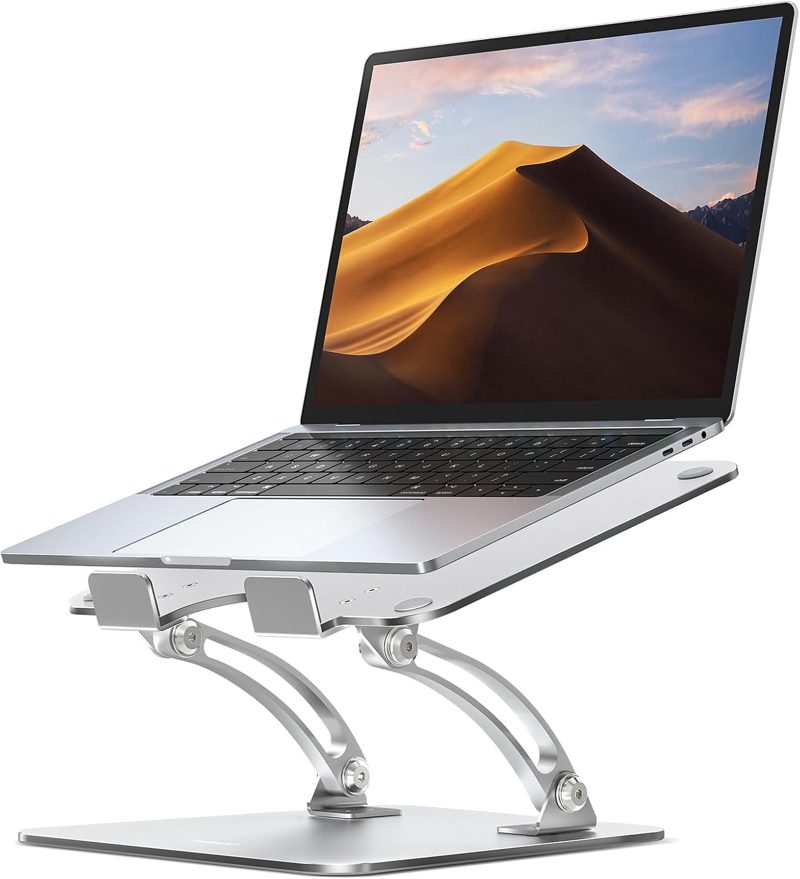
Nulaxy Adjustable Laptop Stand
An aluminum laptop stand that raises your screen to eye level to ease neck strain, then folds flat for your bag.
Check price on AmazonAs an Amazon Associate I earn from qualifying purchases.
Quick check: sit up straight, close your eyes, then open them. You should be looking at the top third of your screen without tilting your head. If you're looking down, raise the screen.
Fix 2: Give your feet something to do
Here's the ergonomic upgrade nobody sees: a foot rest. When your feet rest flat and supported — ideally with a slight ability to shift and rock — your thighs take less pressure and your lower back stops compensating for dangling legs. It's especially noticeable for shorter users whose feet don't quite reach the floor, and for anyone who sits cross-legged (you know who you are) and pays for it later.
Look for one with adjustable height and tilt. The adjustability matters more than it sounds: being able to change the angle through the day keeps your legs moving instead of locked at one position for eight hours.
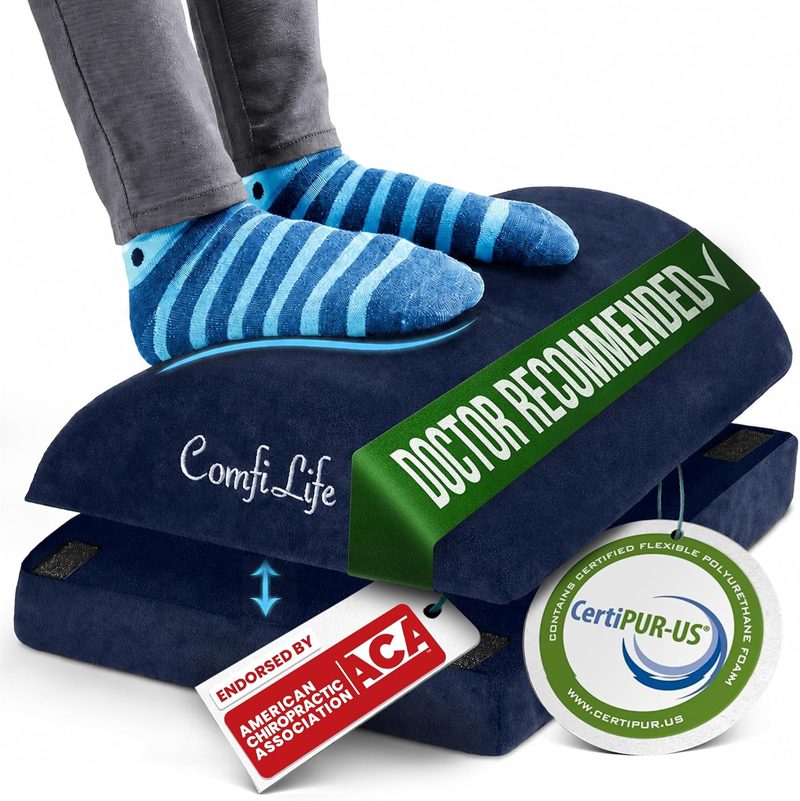
ComfiLife Under-Desk Foot Rest
An adjustable under-desk foot rest that takes pressure off your thighs and keeps your legs shifting instead of locked at one angle.
Check price on AmazonAs an Amazon Associate I earn from qualifying purchases.
Quick check: your knees should be at roughly the same height as your hips, with feet flat. If your chair is cranked up to reach the desk and your feet dangle, a foot rest closes the gap.
Fix 3: Straighten your wrists
Flat keyboards force a subtle but constant wrist bend — your hands angle upward from the desk to reach the keys, and your wrists also deviate outward to fit a straight key layout. Over thousands of keystrokes a day, that adds up to real strain.
Split ergonomic keyboards solve this with geometry: a curved, split keyframe lets your hands rest at their natural angle, and a pillowed wrist rest supports you without pressure points. There's an adjustment period — most people type slower for the first week — but heavy typists consistently describe it as the upgrade they wish they'd made years earlier.
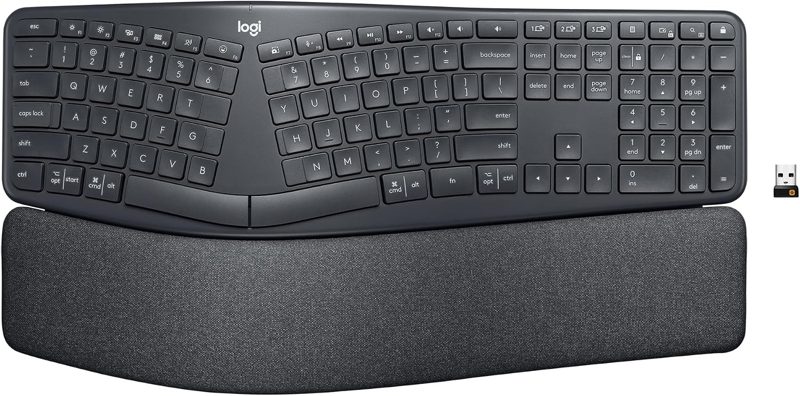
Logitech ERGO K860 Split Keyboard
A curved split keyboard with a pillowed wrist rest designed to keep your wrists in a neutral position while you type.
Check price on AmazonAs an Amazon Associate I earn from qualifying purchases.
Quick check: look at your wrists while you type. If they bend upward like a "stop" gesture, or kink outward at an angle, your keyboard is working against you.
Fix 4: Light your desk, not your screen
Overhead lighting and desk lamps both create the same problem: light hits your screen and washes it out, so you squint, lean in, and crane your neck. The fix that looks like magic in before-and-after photos is a monitor light bar — it sits on top of your monitor and washes the desk in light while leaving the screen untouched.
Beyond the ergonomics, it's the fastest aesthetic upgrade in this guide. A dark room, one click, and the desk glows. Your eyes stop fighting glare, your posture relaxes, and late work sessions feel dramatically less draining.
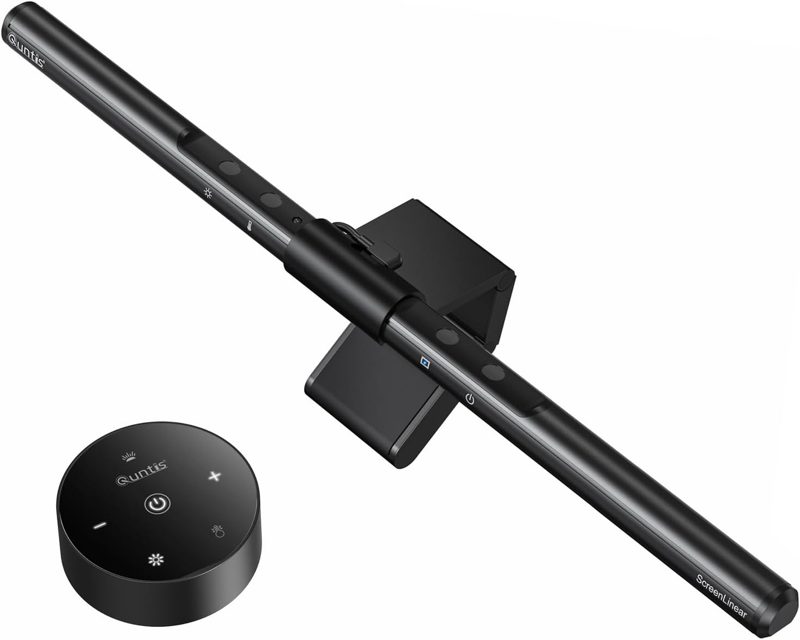
Quntis Monitor Light Bar
A monitor light bar that washes your desk in warm light with zero screen glare and zero lamp footprint.
Check price on AmazonAs an Amazon Associate I earn from qualifying purchases.
Quick check: if you can see your lamp or window reflected in your screen, you have a glare problem — and your neck is paying for it.
Fix 5: Get the cables off your mind (and floor)
Cable chaos isn't just ugly — it's a daily low-grade stressor and a genuine tripping and dust hazard. The fix is embarrassingly simple: mount a tray under the desk, drop the power strip and the cable nest into it, and never think about it again. Steel trays hold the weight of a full power strip; installation takes minutes with a screwdriver.
If you can't or won't drill (renters, glass desks), a cable management box achieves 80% of the result with zero tools: power strip goes in, lid goes on, mess disappears.
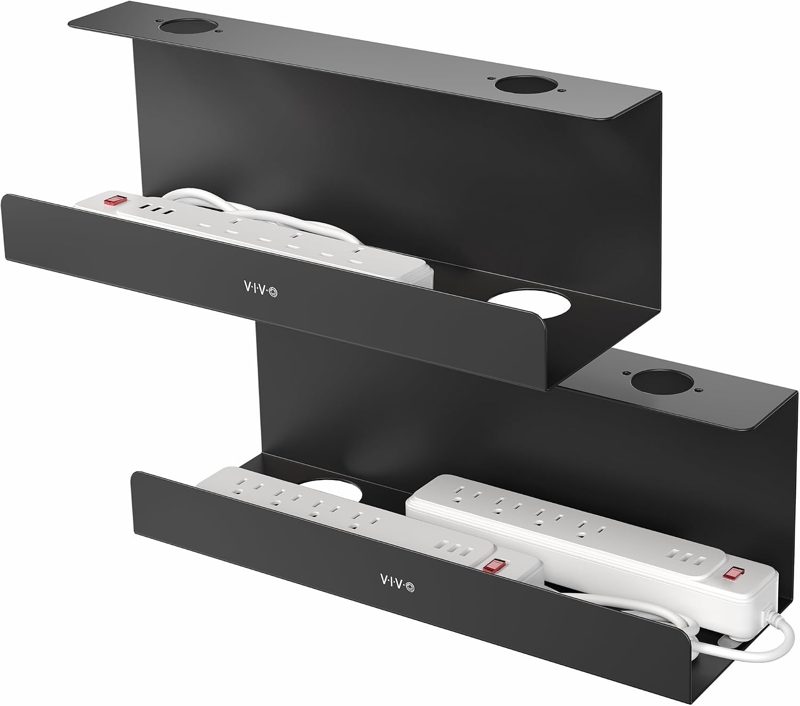
VIVO Under-Desk Cable Tray (2-Pack)
Steel under-desk trays that mount beneath your desktop and hide the power strip and cable nest completely out of sight.
Check price on AmazonAs an Amazon Associate I earn from qualifying purchases.
Quick check: look under your desk right now. If you see a nest, that's a weekend project worth doing.
The 10-minute ergonomics reset
Do this once, in order, and you'll feel the difference today:
- Screen: raise it until the top third is at eye level.
- Chair: adjust so knees sit level with hips, feet flat (add a foot rest if they dangle).
- Keyboard and mouse: keep wrists straight and neutral; elbows near 90 degrees.
- Light: eliminate screen glare — reposition the lamp or add a light bar.
- Movement: set a timer. Stand, stretch, or walk for two minutes every hour. No product beats movement.
Frequently asked questions
Do I need a standing desk for good ergonomics?
No. Standing desks are nice, but the posture wins come cheaper: screen at eye level, feet supported, wrists neutral. Fix the geometry first; add a standing desk later if you want movement variety.
How long does it take to adjust to an ergonomic keyboard?
Most people type slower for about a week, then return to full speed. Give it two weeks of consistent use before judging — switching back and forth between old and new layouts extends the adjustment.
Is a laptop stand enough, or do I need a monitor?
A stand plus an external keyboard and mouse gives you proper screen height and wrist position — the two things that matter most. An external monitor is a comfort and productivity upgrade, not an ergonomic requirement.
What's the best order to buy these in?
Match your loudest complaint: neck pain means screen height first; wrist pain means keyboard; eye strain means lighting; general restlessness means foot support and more movement breaks.
Ready to browse? See the full desk setup collection — or if you're shopping for someone else, our gifts for remote workers guide organizes the best picks by budget.